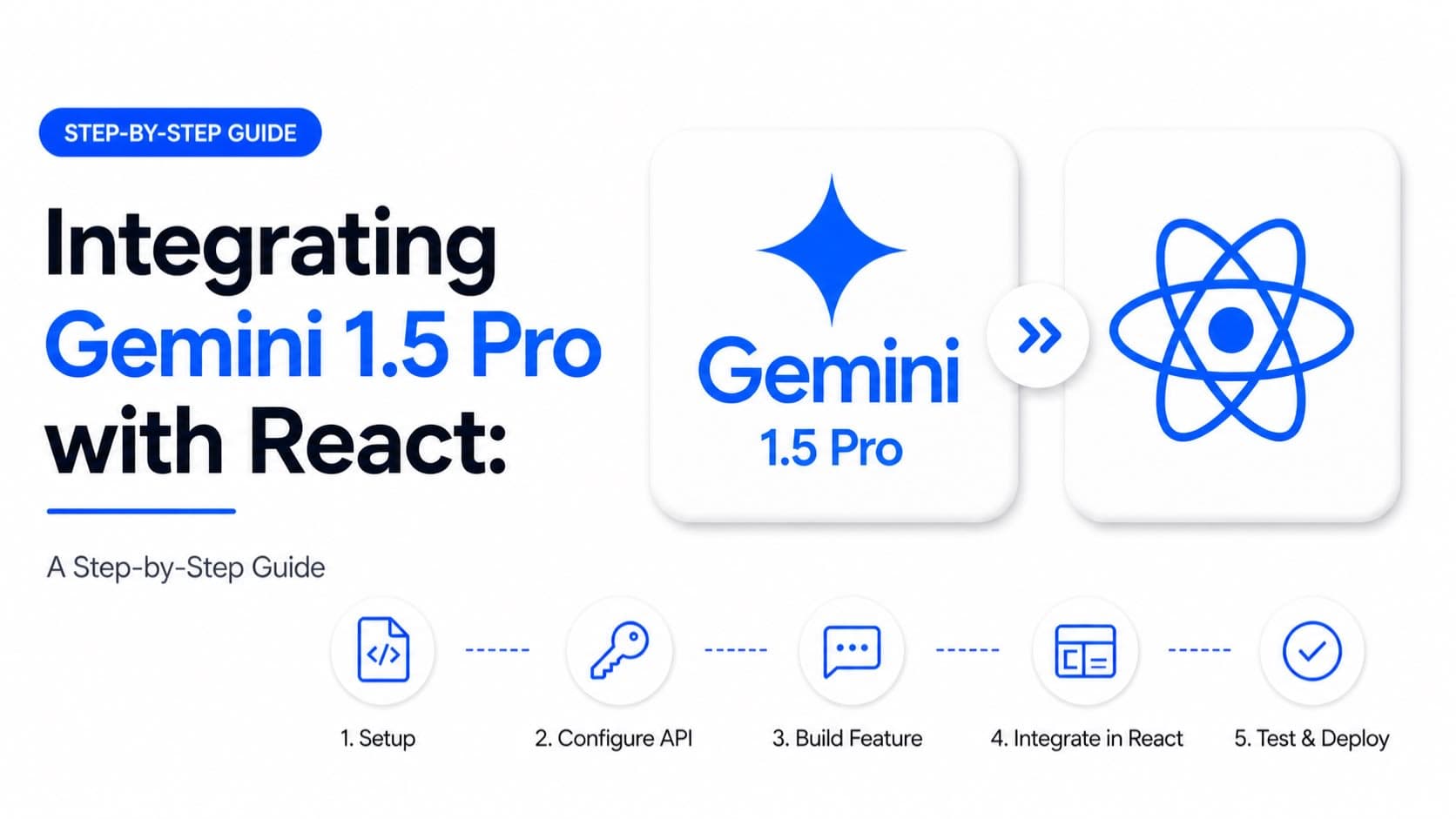
Building interactive, intelligent web applications often involves integrating powerful AI models. Gemini 1.5 Pro offers an advanced multimodal AI that can significantly enhance user experiences. This guide will walk you through integrating Gemini 1.5 Pro with your React application, from initial setup to practical implementation, enabling you to add sophisticated AI capabilities.
TL;DR
- Gemini 1.5 Pro offers advanced multimodal AI capabilities for React apps.
- Server-side proxy is crucial for securing API keys and handling rate limits.
- Utilize streaming responses for better UX with long AI generations.
- Consider token management and cost optimization from the start.
- Error handling and loading states are essential for a robust UI.
Setting Up Your Environment and Google Cloud Project
Before diving into the code, you'll need to prepare your Google Cloud Project. This involves enabling the Gemini API and setting up authentication. For production environments, I strongly recommend using a service account and managing API keys securely on your backend, never directly in your React client.
- Create a Google Cloud Project: If you don't have one, create a new project in the Google Cloud Console.
- Enable the Vertex AI API: Navigate to
APIs & Services > Libraryand search for "Vertex AI API." Enable it for your project. - Generate an API Key (for development only): For quick local development, you can generate an API key via
APIs & Services > Credentials. However, for anything beyond local testing, use service accounts and a secure backend proxy. This is a critical security consideration to prevent unauthorized use and billing surprises. - Install Necessary Packages: On your Node.js backend (which we'll use as a proxy), you'll need the Google Generative AI client library.
npm install @google/generative-ai express cors dotenv
# or
yarn add @google/generative-ai express cors dotenv
Building a Secure Backend Proxy (Node.js/Express)
Directly exposing your Gemini API key in a client-side React app is a significant security risk. A simple Node.js/Express server acts as a secure intermediary, handling API requests and keeping your key hidden. This also allows you to implement rate limiting, logging, and more complex authentication if needed.
Create a file named server.js (or similar) in your project root:
require('dotenv').config();
const express = require('express');
const cors = require('cors');
const { GoogleGenerativeAI } = require('@google/generative-ai');

const app = express();
const port = process.env.PORT || 3001;

// --- Configuration --- //
const API_KEY = process.env.GEMINI_API_KEY;

if (!API_KEY) {
  console.error('GEMINI_API_KEY is not set in .env file.');
  process.exit(1);
}

const genAI = new GoogleGenerativeAI(API_KEY);
const model = genAI.getGenerativeModel({ model: "gemini-1.5-pro" });

// --- Middleware --- //
app.use(cors()); // Configure CORS for specific origins in production
app.use(express.json()); // To parse JSON request bodies

// --- Routes --- //
app.post('/generate', async (req, res) => {
  try {
    const { prompt, history } = req.body;

    if (!prompt) {
      return res.status(400).json({ error: 'Prompt is required.' });
    }

    // Start a chat session with optional history
    const chat = model.startChat({
      history: history || [], // Array of { role: 'user' | 'model', parts: [{ text: '...' }] }
      generationConfig: {
        maxOutputTokens: 200, // Adjust as needed
        temperature: 0.7,
        topP: 0.95,
        topK: 60,
      },
    });

    const result = await chat.sendMessageStream(prompt);
    // Stream the response back to the client
    res.setHeader('Content-Type', 'text/event-stream');
    res.setHeader('Cache-Control', 'no-cache');
    res.setHeader('Connection', 'keep-alive');

    for await (const chunk of result.stream) {
      const chunkText = chunk.text();
      res.write(`data: ${JSON.stringify({ text: chunkText })}\n\n`);
    }
    res.end();

  } catch (error) {
    console.error('Error generating content:', error);
    res.status(500).json({ error: 'Failed to generate content.', details: error.message });
  }
});

// --- Server Start --- //
app.listen(port, () => {
  console.log(`Proxy server listening on port ${port}`);
});
Create a .env file in the same directory as server.js:
GEMINI_API_KEY=YOUR_GEMINI_API_KEY_HERE
PORT=3001
Remember to replace YOUR_GEMINI_API_KEY_HERE with your actual key. Start your server with node server.js.
Integrating with Your React Frontend
Now, let's build a simple React component that interacts with our backend proxy to leverage Gemini 1.5 Pro. We'll use the fetch API for simplicity, but a library like Axios also works well.
Create a new React component, e.g., GeminiChat.jsx:
import React, { useState, useRef, useEffect } from 'react';

const GeminiChat = () => {
  const [prompt, setPrompt] = useState('');
  const [response, setResponse] = useState('');
  const [loading, setLoading] = useState(false);
  const [error, setError] = useState(null);
  const [chatHistory, setChatHistory] = useState([]); // Stores { role, parts: [{ text }] }

  const responseEndRef = useRef(null);

  useEffect(() => {
    responseEndRef.current?.scrollIntoView({ behavior: "smooth" });
  }, [response]);

  const handleSubmit = async (e) => {
    e.preventDefault();
    if (!prompt.trim()) return;

    setLoading(true);
    setError(null);
    setResponse(''); // Clear previous response for streaming

    const currentPrompt = prompt;
    setPrompt(''); // Clear input immediately

    // Add user's message to history
    const newUserMessage = { role: 'user', parts: [{ text: currentPrompt }] };
    setChatHistory((prev) => [...prev, newUserMessage]);

    try {
      const res = await fetch('http://localhost:3001/generate', {
        method: 'POST',
        headers: { 'Content-Type': 'application/json' },
        body: JSON.stringify({ prompt: currentPrompt, history: chatHistory }),
      });

      if (!res.ok) {
        const errorData = await res.json();
        throw new Error(errorData.error || 'Network response was not ok.');
      }

      // Handle streaming response
      const reader = res.body.getReader();
      const decoder = new TextDecoder();
      let accumulatedResponse = '';

      while (true) {
        const { done, value } = await reader.read();
        if (done) break;

        const chunk = decoder.decode(value, { stream: true });
        // Each 'data:' line is a JSON string
        chunk.split('\n\n').forEach(line => {
          if (line.startsWith('data: ')) {
            try {
              const data = JSON.parse(line.substring(6));
              accumulatedResponse += data.text;
              setResponse(accumulatedResponse);
            } catch (parseError) {
              console.error('Error parsing stream chunk:', parseError, line);
            }
          }
        });
      }

      // Add model's final message to history
      const newModelMessage = { role: 'model', parts: [{ text: accumulatedResponse }] };
      setChatHistory((prev) => [...prev, newModelMessage]);

    } catch (err) {
      console.error('Fetch error:', err);
      setError(err.message);
    } finally {
      setLoading(false);
    }
  };

  return (
    <div style={{ maxWidth: '800px', margin: '20px auto', padding: '20px', border: '1px solid #ddd', borderRadius: '8px', fontFamily: 'sans-serif' }}>
      <h2>Gemini 1.5 Pro Chat</h2>
      <div style={{ maxHeight: '400px', overflowY: 'auto', border: '1px solid #eee', padding: '10px', marginBottom: '15px', borderRadius: '4px', backgroundColor: '#f9f9f9' }}>
        {chatHistory.map((msg, index) => (
          <p key={index} style={{ marginBottom: '5px', color: msg.role === 'user' ? '#333' : '#0056b3' }}>
            <strong>{msg.role === 'user' ? 'You:' : 'Gemini:'}</strong> {msg.parts[0].text}
          </p>
        ))}
        {loading && <p><em>Gemini is typing...</em></p>}
        {response && <p style={{ color: '#0056b3' }}><strong>Gemini (current):</strong> {response}</p>}
        <div ref={responseEndRef} />
      </div>
      <form onSubmit={handleSubmit} style={{ display: 'flex' }}>
        <input
          type="text"
          value={prompt}
          onChange={(e) => setPrompt(e.target.value)}
          placeholder="Ask Gemini 1.5 Pro anything..."
          disabled={loading}
          style={{ flexGrow: 1, padding: '10px', border: '1px solid #ccc', borderRadius: '4px 0 0 4px', fontSize: '16px' }}
        />
        <button
          type="submit"
          disabled={loading}
          style={{ padding: '10px 15px', backgroundColor: '#007bff', color: 'white', border: 'none', borderRadius: '0 4px 4px 0', cursor: 'pointer', fontSize: '16px' }}
        >
          Send
        </button>
      </form>
      {error && <p style={{ color: 'red', marginTop: '10px' }}>Error: {error}</p>}
    </div>
  );
};

export default GeminiChat;
Embed this GeminiChat component into your main React application (e.g., App.js) to see it in action.
Handling Streaming Responses for Better UX
One of Gemini 1.5 Pro's powerful features is its ability to stream responses. This means you don't have to wait for the entire generation to complete before displaying content to the user. As demonstrated in the React code, we read the stream chunk by chunk and update the response state. This creates a more dynamic and responsive user experience, especially for longer generations, which can significantly improve perceived performance and user satisfaction – something I've found crucial in real-world client applications.
Best Practices and Considerations
When working with powerful AI models like Gemini 1.5 Pro, several considerations can optimize performance, cost, and user experience:
- Security First: Always use a backend proxy for API keys. This isn't just a recommendation; it's a necessity. Publicly exposed keys are an open invitation for abuse.
- Error Handling: Implement robust error handling on both client and server sides. Inform users clearly when something goes wrong and log detailed errors on the server.
- Loading States: Provide clear visual feedback to users when the AI is processing their request. This improves perceived performance and prevents users from repeatedly clicking buttons.
- Token Management & Cost: Gemini 1.5 Pro usage is metered by tokens (input and output). Monitor your usage and optimize prompts to be concise yet effective. Consider implementing user-specific rate limits on your backend. For a high-traffic application, these costs can quickly add up to hundreds or thousands of USD, CAD, GBP, or INR per month without proper management.
- Scalability: For production deployments, your Node.js proxy should be deployed on a scalable platform like Google Cloud Run, AWS Lambda, or a Kubernetes cluster, ensuring it can handle concurrent requests.
- User Feedback & Moderation: Integrate mechanisms for users to report inappropriate or incorrect AI responses. Consider using Google's safety settings or your own moderation layers.
FAQ
Q: Can I use Gemini 1.5 Pro directly from my React frontend without a backend?
A: While technically possible for very simple, non-sensitive cases with a public key, it's strongly discouraged for security reasons. Your API key would be exposed, allowing anyone to use it and incur charges on your behalf. A backend proxy is the industry standard for securing API access.
Q: How do I handle multimodal inputs (images, audio) with Gemini 1.5 Pro in React?
A: For multimodal inputs, you would typically upload the media (e.g., an image) to your backend proxy first. The backend would then process this media, potentially converting it to a base64 string or a Google Cloud Storage URI, and then pass it along with the text prompt to the Gemini API. The React frontend would handle the file selection and upload process.
Q: What's the difference between sendMessage and sendMessageStream?
A: sendMessage waits for the entire AI response to be generated before returning it, which can cause delays for the user. sendMessageStream, as used in this guide, returns the response in chunks as it's being generated, allowing you to display it incrementally and provide a better user experience.
Q: How can I manage the conversation history effectively?
A: The chatHistory array in our example stores previous turns. For longer conversations, you'll need to manage its size to stay within token limits. Strategies include summarizing older parts of the conversation, truncating the history, or using dedicated session management on the backend.
Final thoughts
Integrating Gemini 1.5 Pro with a React application opens up a world of possibilities for creating intelligent and dynamic user experiences. By following a secure and structured approach, leveraging a backend proxy, and embracing streaming responses, you can build powerful AI-powered features. This pattern is not just theoretical; I've shipped similar integrations for clients seeking to embed next-generation AI capabilities into their products.
If you're building something similar and want a second pair of senior eyes to ensure security, scalability, and an optimal user experience, get in touch. I specialize in bringing these advanced capabilities to production environments with Next.js, React, and Node.js.